Biggest Changes Milestones Professional 2017:
Undo… Anything!
A new Multiple Undo feature has been added to Milestones. Now all actions can be undone. You can set the number of actions that can be undone from 1 to 100 (the default is 20). This is done using the Tools | Program Options | Edit screen:

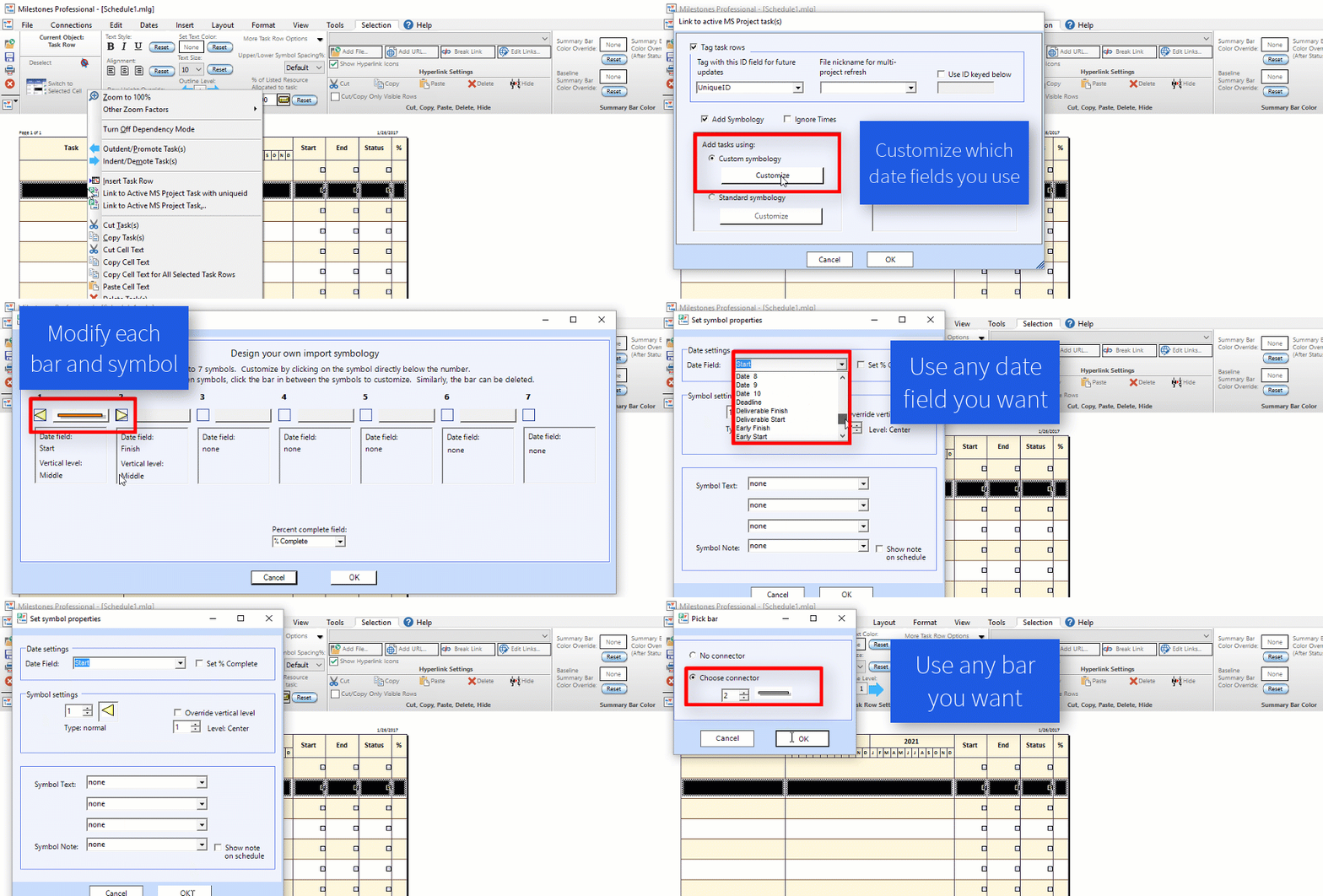
Design your own Symbology with any Project date fields!
See how you can totally customize your symbology with Milestones Professional 2017:
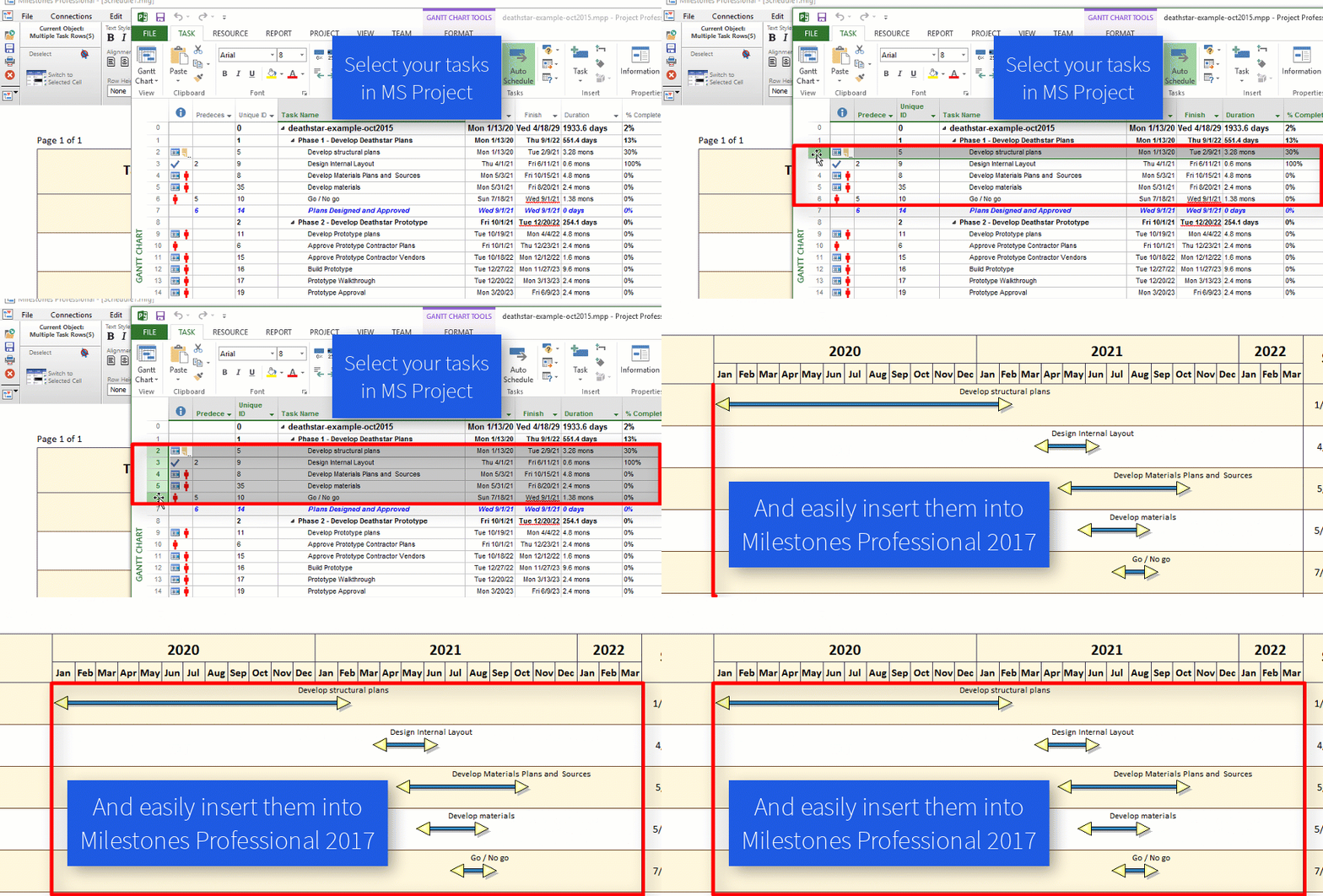
Easily grab multiple tasks from MS Project
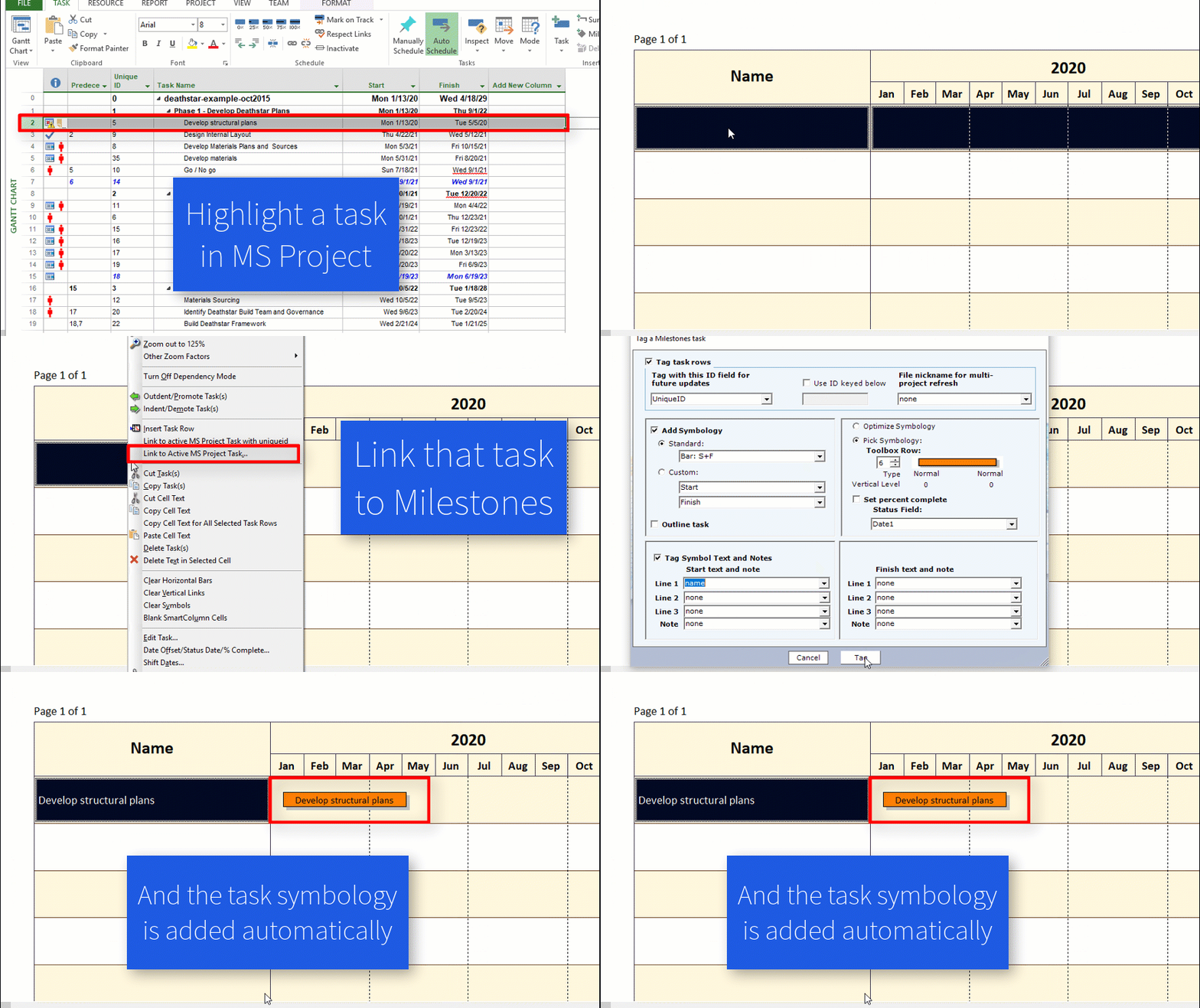
In past versions, one Microsoft Project task could be linked via the “Link to Active MS Project task” feature. Now, groups of tasks can be selected in Microsoft Project. Then, the link feature makes it possible to link all selected tasks at once. One option is add all dates from selected tasks to a single row on the Milestones chart. The other option is to have Milestones add new rows for each Project task:
Refresh your Tasks from Excel
You can now assign a UniqueID to your tasks when you import from Excel, which allows you to refresh the dates if they have changed in Excel. This also means you can move your symbols and bars around your Milestones schedule.

Attach a Date Heading to a Task Row
It is now possible to attach any single type of date heading to a row. Now, when you right-click on the menu to attach a date heading to a row, a dialog appears that lets you remove the heading, attach a copy of the schedule headings, or a single independent heading of any type:

Even more improvements added in 2017!
Check out our “What’s New in Milestones Professional 2017” (PDF) to see even more additions and improvements.